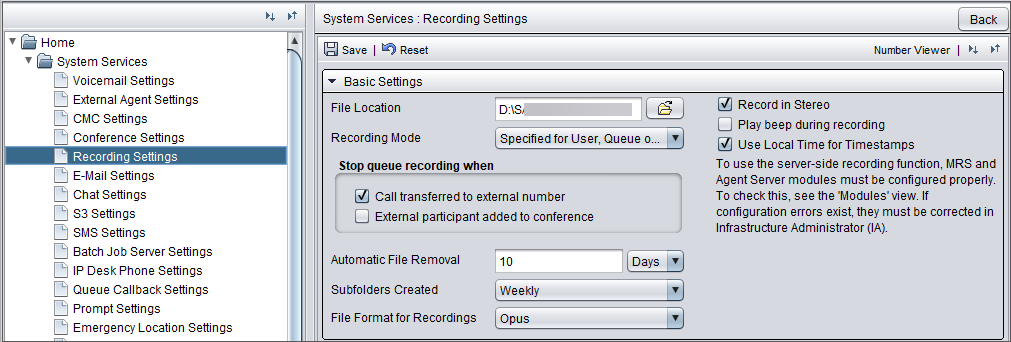
System's recording settings
Prerequisites
You need rights to modify recording service. There must be at least one MRS component that has the option Use for Server-Side Recording selected.
Configuration
-
In System Configurator, go to .
-
Configure the settings according to the following table.
| Setting | Description |
|---|---|
File location |
Enter a path to define the central location where the recorded calls are saved. This path is used for all recordings in the system, unless you define a location-specific path in Agent Server or MRS in Infrastructure Administrator (IA). If you define a location-specific path, make sure the files are replicated to global location as well. In a clean installation, the recording path is \\xxx\REC\ so you must define the correct path. We recommend using UNC paths. Note: If you change the location, you must restart Agent Server (AS), and Media Routing Server (MRS). |
Recording mode |
Define the recording level for your system.
|
Stop queue recording when: Call transferred to external number |
To stop queue recording if the call is transferred to an external number, select this option. By default, queue calls transferred to an external number are recorded. This setting affects all queue recording modes. |
Stop queue recording when: External participant added to conference |
To stop queue recording if an external participant is added to a conference call, select this option. External participant means a person whose number is not found in Sinch Contact Pro. You can only select this when Call transferred to external number is also selected. Note: Recording will not continue when
the external participant leaves the call. |
Automatic file removal |
Enter a date after which recordings are automatically removed from the system. |
Subfolders created |
Choose how the subdirectories for the files recorded on the server are created. The folder names for the recordings are created as follows:
In the file format above, nr is either the user’s extension number, or Cr for call based recordings, such as queue recordings, where the owner of the call can change. |
File format for recordings |
Choose the file format in which recordings are created:
Communication Panel supports playing the created call recordings in the following applications:
|
Play beep during recording |
Select this option if you want that a beep tone is played every 14 seconds to inform all parties that the call is being recorded. This setting applies to all recordings. The interval is hardcoded. The volume can be adjusted with registry parameters.
|
Use local time for timestamps |
Select this option if you want to use local time instead of Universal Time Coordinated (UTC) in the file names of the recorded calls. |