
Accessing Administrative Applications
Launch System Configurator (SC) from the Remote Administration Tools web page or the Connection Web Server (CoWS) web page.
Start Infrastructure Administrator (IA) on the server.
SC prerequisites
- Windows or Mac workstation
- Appropriate Java version is installed on the
workstation:
- Oracle Java version 11, 17, or 21
or
- Azul Zulu Java version 11, 17, or 21
- Oracle Java version 11, 17, or 21
- Open Web Start is installed on the workstation Note:If no Java distribution is installed on your workstation, Open Web Start automatically downloads Eclipse Java distribution. You can use this Eclipse Java distribtion with System Configurator but if you encounter any issues, we may ask you to install an officially supported distribution.
-
An appropriate certificate must be installed and configured on the Connection Server. If a self-signed certificate is used, the certificate must be installed also in the client workstation's trusted root.
-
If you want to use System Configurator on a Mac workstation, Connection Web Server (CoWS) should be installed in your system. Read more in the Installation guide document's page Enable SC Web Access.
Logging in to SC
Option 1 (Windows clients)
-
Open your browser and go to the address provided by your administrator.
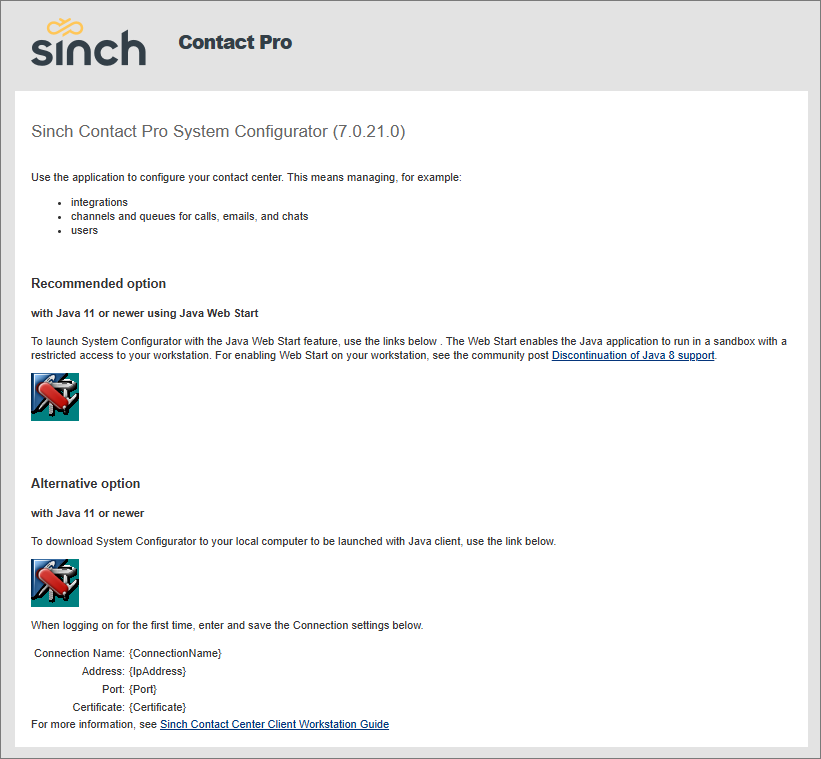
The remote administrator page opens:
-
To start the application, click the relevant icon
 based on if you want to use
Java web start or a local Java client.
based on if you want to use
Java web start or a local Java client. -
Enter your credentials and click Log On.
If SC fails to launch with an error message, for example Initialization Error: Could not initialize application, contact your IT department to check if there are restrictions that block Java. Typically IT should whitelist the SC URL.
When starting SC with Java 11 version for the first time you must enter and save values in the Connection details fields.
Option 2 (Windows and Mac clients)
Open your browser and go to the address provided by your administrator.
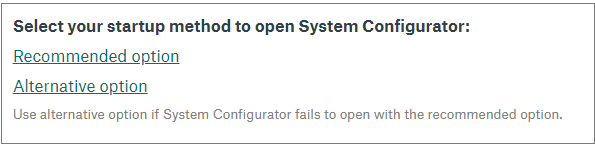
To start the application, click the Recommended option link. Alternative option is for cases where System Configurator doesn't start via the recommend option.
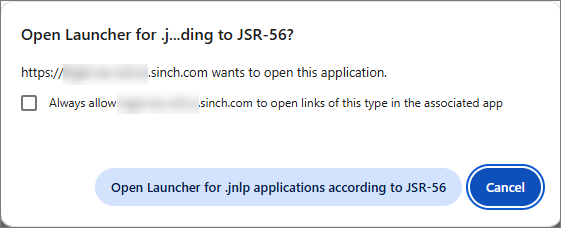
Open the launcher when requested by the browser:
Enter your credentials and click Log On.
Troubleshooting
If the System Configurator does not open:
-
Make sure that during Remote Administration Tools package installation, the variables Connection Server IP Address, Connection Server Port Number, and Connection Server Certificate Common Name are properly defined in Infrastructure Administration. Then make sure that same values are used in SC Connection definitions.
-
Make sure that the Connection Server-related certificate is properly installed, configured, and can be found in Trusted Root.
Advanced Use
In ASP environment, where several independent Sinch Contact Pro systems may locate on same servers, you can define additional connections so that you can start each system’s SC from the same Remote Administration Tools page. Make sure you define all items of a connection right for the specific connection, and make sure that the launch web page is of the same or newer software level than the software it is connecting to.
To define more connections:
-
To open the connection view, click the opening icon. Define the following items:
-
Connection Name: Enter free-form text, for example the customer name, such as ACME.
-
Address: Enter the Connection Server’s address.
-
Port: Enter the Connection Server’s port, the default value is 21002.
-
Certificate: Enter the Connection Server certificate’s common name.
-
-
Click Save.
To delete a connection defined for reaching other systems’ SC, choose the connection from the pull-down menu, click the opening icon, and choose Delete.