
Configuring two-factor authentication (2FA) for SC
You can enable two-factor authentication for System Configurator login. This means users will receive a verification code they'll need to enter to log in.
Verification can be done by SMS or email (in beta) using the Sinch Verification API. Note that 2FA is only supported when accessing SC through Connection Web Server (CoWS), not through the Remote Administration Tool.
Two-factor authentication process
Users will be prompted to give the verification code they've received via SMS or email after they've entered their username and password:
-
User enters credentials and clicks Log On.
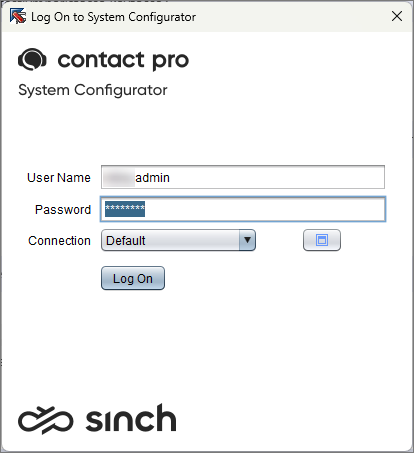
-
User is prompted to give the one-time verification code they've received through either SMS or email.
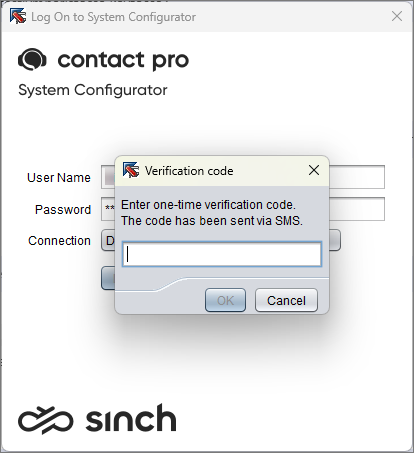
After entering the code, the user is logged in to System Configurator.
If the user's password needs to be changed, they will be prompted after entering the one-time verification code:
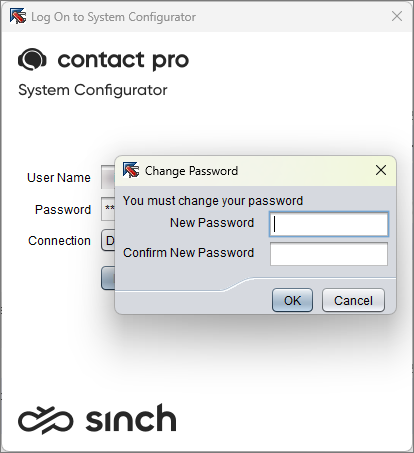
After this, they'll receive another one-time verification code and need to enter it to log in.
Prerequisites
You'll need to have access to Sinch Build and Sinch Verification API. Note that these are additional services billed separately from Sinch Contact Pro. If you want to verify users via email, you'll also need access to Sinch Mailgun.
Make sure SC users have an email address or mobile phone number defined, depending on the method you'll use for sending the verification code. You can define these at or Mobile Number.
Now you can move on to configure two-factor authentication in System management.
Configure two-factor authentication
To define two-factor authentication for SC login:
Create a secret in Secrets manager with the following information:
Name: sinch-verification-api
Authentication ID: key to access your Sinch Verification API
Secret: secret to access your Sinch Verification API
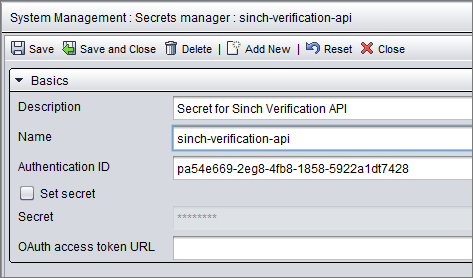
In Authentication Policy's Two-factor authentication (2FA) for System Configurator block, define the settings for 2FA in System Configurator login:
Table 1. Two-factor authentication Field Description Use two-factor authentication Select this if you want System Configurator users to log in by using two-factor authentication. Primary method Select the first method the system will use to send the user a verification code. This is mandatory. Note that the email option from Sinch Verification API is currently in beta. Fallback method Select the method the system will use for sending the verification code if the user is missing the number/address needed for the primary method. Note that the email option from Sinch Verification API is currently in beta. Verification code valid for Define how long the sent verification code is valid. Note that Sinch Verification API might use a shorter validity period. The default value is 5 minutes. Maximum attempts for 2FA Define how many times the user can try the two-factor verification process before their account is locked. The default value is 3. Locked for Define how long the user account is locked from accessing System Configurator if the user enters an incorrect verification code too many times. The user can still access other Sinch Contact Pro user interfaces. The default value is 30 minutes. In the Sinch Verification API block, define the settings for using the API to send verification codes:
Table 2. Sinch Verification API Field Description Endpoint URL Enter the URL of your Sinch Verification API. Authentication method Select which authentication method you want to use to access the API: Application signed request (recommended)
Basic authentication
For more information, see Sinch Verification API documentation
 .
.
Email sender address Enter the email address you want the recipient to see. Email sender name Enter the sender name you want the recipient to see. Save your entries.