
Communication Panel
This section instructs in setting up Communication Panel, which enables handling conversations, such as phone calls, emails, tasks and messages.
-
Create a DNS address that points to Communication Panel, for example phone.company.com.
By default Communication Panel can be launched from https:// [Web Server VU IP address] /ecf/[software version]/communicationpanel/index.html where software version can be one of the following:-
Current version (no hotfixes applied)
-
Previous version
-
Latest, which always points to the latest version in use (the recommended way)
-
-
If client certificates are used for user authentication in HTTPS, install the appropriate certificate on the client workstation.
-
To enable proper communication with the Sinch Contact Pro service, make sure that all necessary ports are opened and workstations have a sufficient connection.
For details on ports and protocols, see Default Ports of Sinch Contact Pro Components in the Security Guide document.
-
Make sure that:
- There is an appropriate audio device software installed on the client workstation. If a user selects a brand in CP's audio device settings but the necessary drivers and firmware aren't installed on their workstation, this may cause issues.
- Access to the URL openui5.hana.ondemand.com is allowed as Communication Panel needs to load this library in order to work.
- Access to the CDN URL is allowed if Communication Panel is loaded from Content delivery network (CDN).
-
Either create a company-wide policy to allow audio device use with Communication Panel or instruct users to allow microphone use in the browser. For the latter option, when users log into Communication Panel for the first time, the browser will ask them to allow audio device use. You can also find the microphone use setting in the browser's settings:
- Chrome:
- Edge:
If integrations are used, for example, Communication Panel embedded in SAP Service Cloud (C4C), microphone access must be allowed in the browser for both pages (sinch.com and C4C ondemand.com).
-
Disable Windows USB selective suspend.
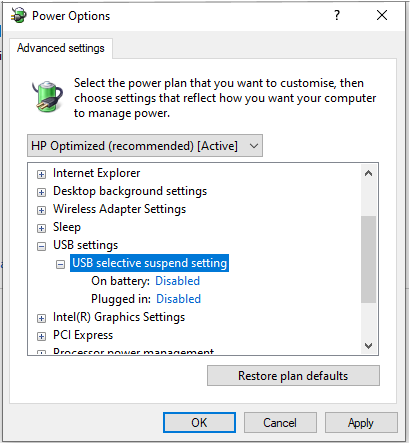
By default Windows tries to save electricity and follow the USB device activity. If the device has been inactive for a long period of time, Windows turns on sleep mode and Sinch Contact Pro will lose connection to the device. This causes problems when a call is allocated to a user. Therefore, please disable USB power save feature. Do this in both of the following locations:- Go to and deselect Allow the computer to turn off
this device to save power.
Repeat this for all USB hubs.
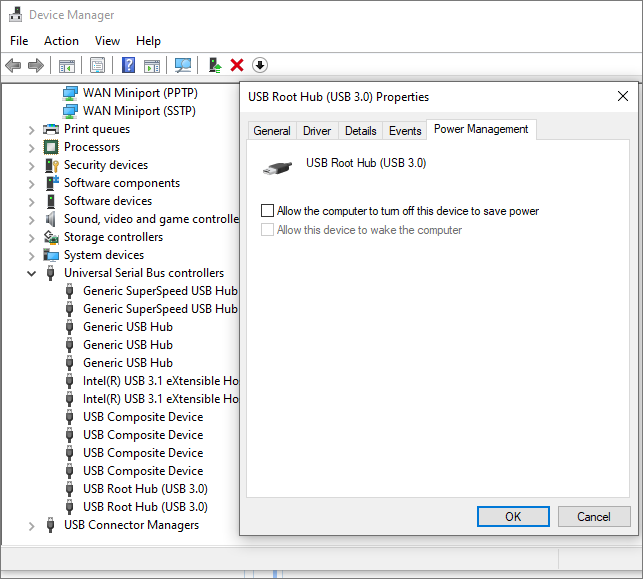
- Go to and choose the power plan you have in use. Then disable
the setting USB Selective suspend
settings.
- Go to and deselect Allow the computer to turn off
this device to save power.
-
If your browser is:
-
Microsoft Edge, check that the browser is not using sleeping tabs

-
Google Chrome, check that the browser is not using memory saver
These may be in use either as a system setting or an extension. Disable them or add the Communication Panel URL to the site exception list. If the Communication Panel tab is put in sleep mode, it loses the connection to the backend.
-
-
To enable Windows notifications for incoming conversations, ask users to do the following:
Go to the browser's notification settings:
Chrome:
Edge:
Firefox:
Enable notification sending.
Add the Communication Panel URL as an allowed site.
Confirm your notification behaviour from Windows .
-
By default, the microphone remains active even when there is no ongoing call or when the CP browser is running in the background, as disconnecting from the audio device during these times can cause problems when trying to connect the next call. To change the default behavior, change the setting keepAudioDeviceActive to false in VU\[ecf agents VU]\tomcat\webapps\ECFSettings\CommunicationPanel.json.
-
To enable users to use Communication Panel, use the user settings template Communication Panel Agent when creating users in the System Configurator tool. For more information, see the System Configurator document.
The template provides the following mandatory settings:
- To enable handling chats: .
- To enable handling emails: . Also make sure that the value Maximum Number of Simultaneous ECF Tasks is between 1 and 6.
-
To enable conversation handling, define the following rights in System Configurator. We recommend defining the rights via appropriate user and queue groups.
- To be able to handle conversations, users need View and Serve rights to the queues.
- To see conversation history and details, users need Statistics Details and Manage Contact History rights to the queues.
Supported Browsers and Platforms
The following table lists the supported operating systems and browsers.
| Operating system | Browsers |
|---|---|
Windows 10 and Windows 11 |
Use the latest version of the browser |
MacOs |
Chrome Use the latest version of the browser |
-
Google Chrome and Microsoft Edge: Extended Stable channel
-
Firefox: Firefox ESR (Extended Support Release)
For enabling these update channels, contact your IT department.
Note that Opera doesn’t offer a similar update model.
Clearing the Browser's Cache
After an upgrade or a system maintenance, clear the cache or set the browser to clear the cache when closing. Sinch Contact Pro user interfaces are based on web technology, which means that from Sinch Contact Pro servers to workstations there might be several entities caching the content. Using a cached file may cause issues especially after Sinch Contact Pro system upgrades and other system maintenance.