Headsets
This section lists supported devices and explains how to achieve optimal audio performance.
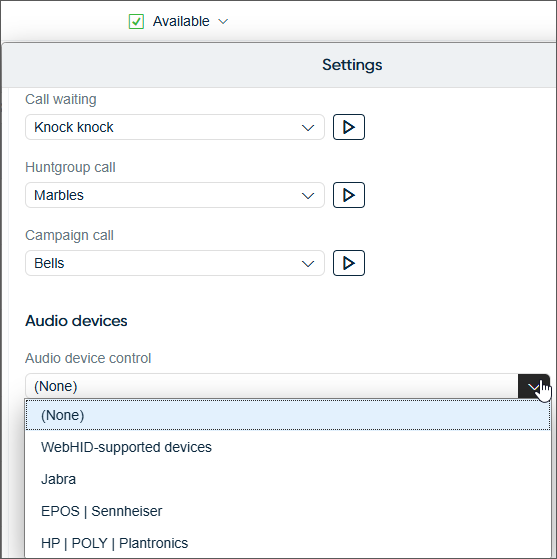
To use the voice channel in Sinch Contact Pro, agents need an audio device with a microphone and speaker connected to their workstations. The device can be any USB headset, a headset with 3.5 mm plugin or even a laptop integrated solution.
Our recommendation is to use a USB headset from manufacturers such as Jabra, Poly (previously Plantronics), or EPOS (previously Sennheiser) as they have been verified to work and to integrate with Sinch Contact Pro. The integration enables for example answer, mute, and hang up from the headset. These controls may affect how the headset status is seen by the system (operating system, Microsoft Teams, other apps), and vice versa. Incorrect status information may lead to a bad user experience. For example, the headset profile (settings), noise cancellation, microphone and speaker levels could be different depending on whether the agent is in a call or not.
If you choose to use low-end USB headsets, the problem in these devices is often the digital signal processor (DSP) component: it can cause audio delays and drops.
If you have a device from Jabra, Poly, or EPOS but it's not listed, contact Sinch support.
Tips for preventing headset audio issues
The tables below give you tips for optimal audio performance. See also this community post about Communication Panel audio issues.
| Tip | Description |
|---|---|
|
USB power saving on workstation |
|
|
Direct USB connection |
Always plug the headset directly into a USB port on the computer, not through a USB hub, docking station, or port replicator. These can sometimes interfere with the communication between the headset and the computer, leading to audio issues. |
|
Check physical connections |
Ensure the USB connector is fully and securely inserted into the USB port. A loose connection can cause a variety of problems. If you suspect a faulty port, try a different one. |
|
Inspect for damage |
Regularly check the headset's cable for any signs of fraying or damage. A damaged cable can lead to intermittent audio or a complete failure of the device. |
|
Wireless headset considerations |
For wireless headsets, use only the manufacturer's USB dongle. Ensure the USB dongle is securely connected and the headset itself is adequately charged. |
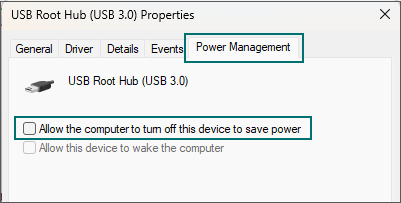
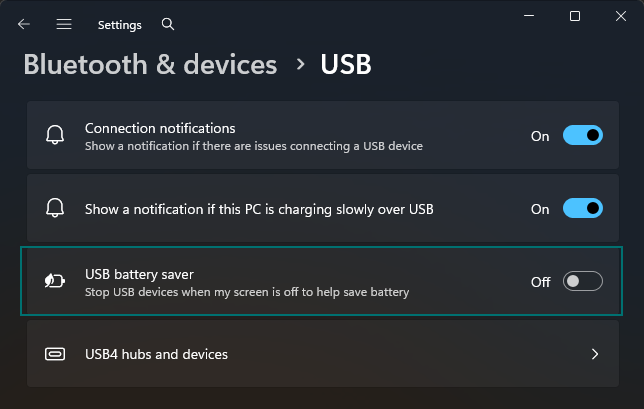
| Tip | Description |
|---|---|
|
Keep firmware and drivers updated |
Headset manufacturers frequently release firmware and driver updates that can improve performance, fix bugs, and enhance compatibility with telephony software. You should install these updates using the manufacturer's software. |
|
Avoid software conflicts |
Other audio-related software running in your workstation can conflict with the headset. If you run into any issues, try closing other applications that might be trying to use the headset. |
|
Use manufacturer software |
Many business-grade headsets come with companion software that allows for more advanced configuration, such as adjusting microphone sensitivity and equalizing audio. |
| Tip | Description |
|---|---|
|
Set as default device |
In your computer's sound settings, make sure the USB headset is set as the default device for both playback and recording. This helps ensure that Communication Panel will use the correct device. Note:
The selected device must be supported
and required software must be installed on the workstation. If
these requirements aren't met, keep the default setting of
(None) in Communication Panel audio settings.
|
|
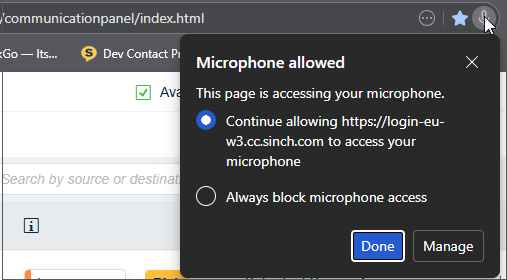
Allow audio device usage on browser |
In the browser, allow usage of the audio device from the Communication Panel website. Otherwise, Communication Panel won’t work properly.
If only chat and email channels are in use, then allowing audio is not mandatory. |
|
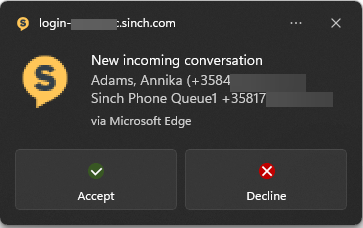
Allow browser notifications |
In the browser, allow notifications from the Communication Panel website. This ensures you receive incoming call notifications even when outside the browser.
|
|
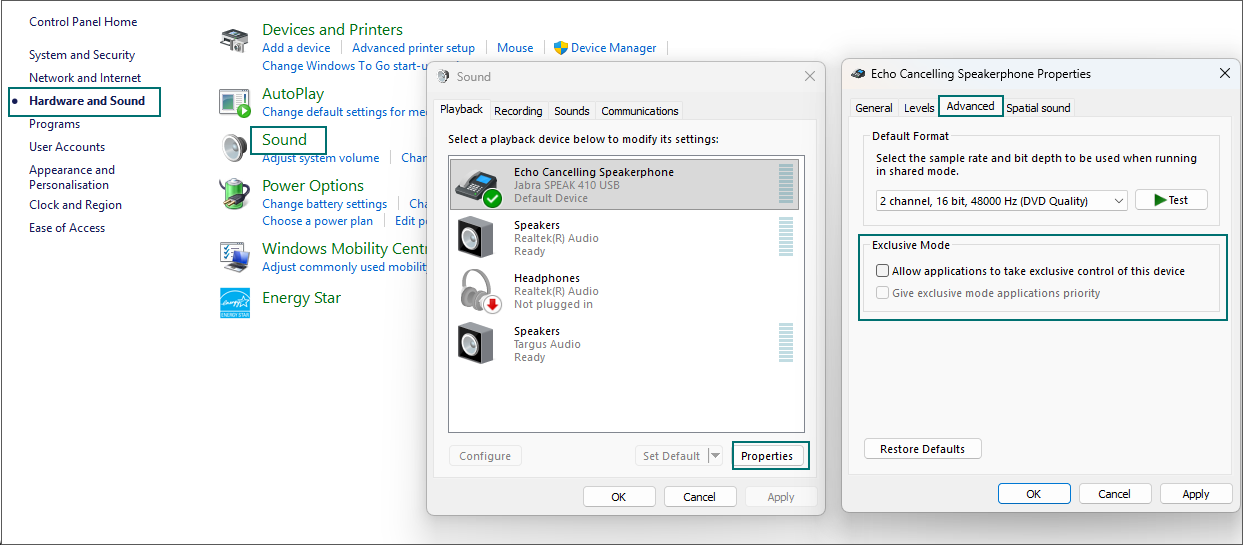
Avoid Exclusive mode |
In Windows sound settings, under the advanced properties for your headset, there's an option to Allow applications to take exclusive control of this device. It's often best to uncheck this box. A browser, being a shared application, can run into issues if another app has seized exclusive control of the headset.
|