
View agent information
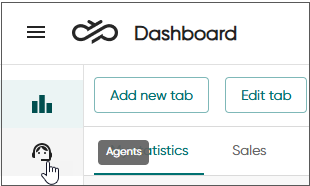
To see all Communication Panel agents you have rights to see and who have been active for the current day (either logged in, logged out, or handled conversations), click Agents.
-
To drill down into agents' activity, use the Presence filter. This filter allows you to search against agents who have the following conditions for the current day:
Table 1. Presence filter Presence value Shows active today
only agents who have had any activity during the current day are listed (logged in, logged out or conversation handling).
currently logged in
only agents who are currently logged in to Communication Panel
currently logged out
only agents who are currently logged out of Communication Panel
serving in a campaign
only agents who currently serve in an outbound campaign
ready
only agents who currently have the status Ready
not ready
only agents who currently have the status Not ready
logged in but away
only agents who currently have an absence profile and are logged in to Communication Panel
-
To add or remove shown columns, click Columns.
The Agent column is always visible. Presence and Queue are filters and therefore not available in column selection.
The table below lists the available columns and describes their content.
Column Description Availability
Agent's readiness to accept conversations and is one for the following:-
Free
The agent is logged in to Communication Panel and is ready to receive and start handling a conversation.
-
Busy
The agent is logged in to Communication Panel and is working on an active conversation. The serving status is Ready and the presence profile Available. The conversation type in progress is shown as well.
-
Away
The agent is logged in to Communication Panel but is unable to take a conversation. For example, the serving status can be Ready and the profile Meeting, which is an absence profile.
-
Logged out
The agent is logged out from Communication Panel.
Reporting group
The reporting group the agent belongs to
User group The user group the agent belongs to
Profile
The profile the agent has, for example, Available, Lunch, or Meeting.
Note:If the agent is logged out, the column shows their last selected profile.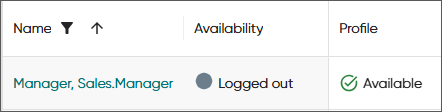
Conversations
Number of conversations in process with the agent per conversation type.
Phone extension
Agent's extension number in the Sinch Contact Pro system
Mobile number
Agent's mobile phone number
Location
If the location setting has been defined in , it's shown here.
Chat name
The name shown in chat conversations if one has been defined for the agent
Chat address
Agent's chat address
Email address
Agent's email address
-
User group
With rights to view user groups, you can display users per their user group by adding the User group column to the table. To filter by user group, select the group or users within a group from the Search user groups and users list. The agents that don't belong to any user groups are listed under Agents without groups.
The User group filter is available in the Agents view (Agent information, Today's statistics, and Queues tabs), Conversations view, and the Agents table of the Serving status card.
Filter
-
Select the User group filter in one of the above views.
-
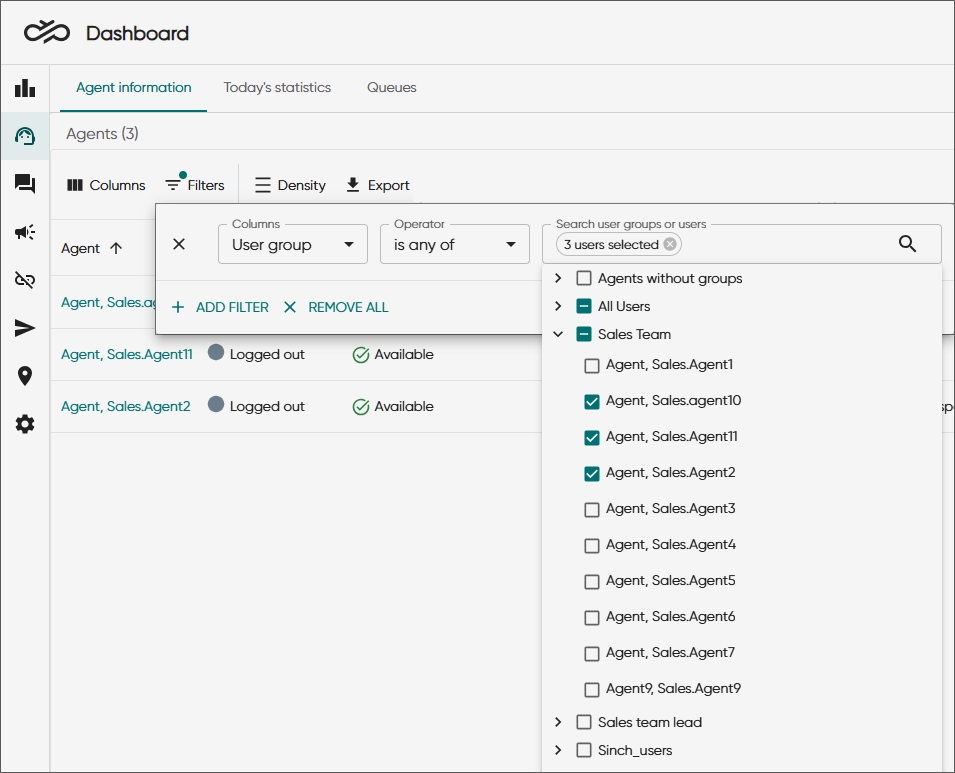
Select the group(s) from the list or narrow it down by starting to type the group's name.
-
If you don't want to select all users in the group, expand the list and select the users.
-
Click the arrow to see the agents in the group.
Agents can belong to several user groups.
-
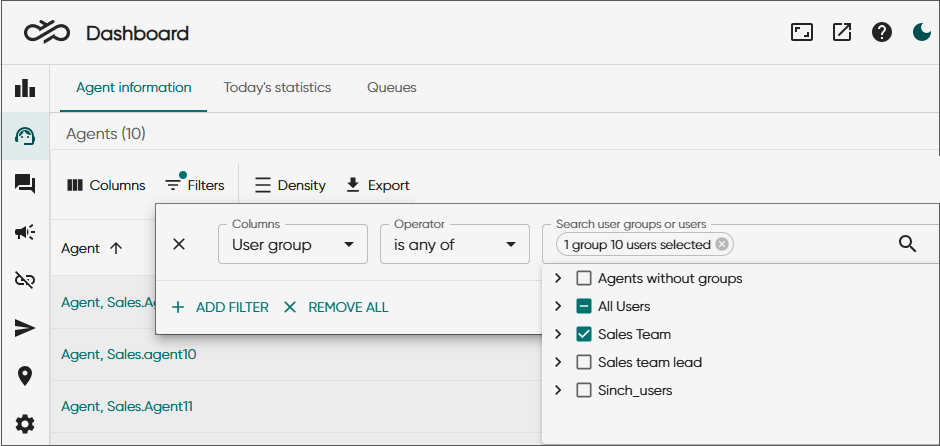
To select all agents in the group, select the group.
Column
The User group column is unselected by default so select it in Columns. This column is available in the Agents view (Agent information, Today's statistics, and Queues tabs), Conversations view, and Agents table of the Serving status card.
Reporting group
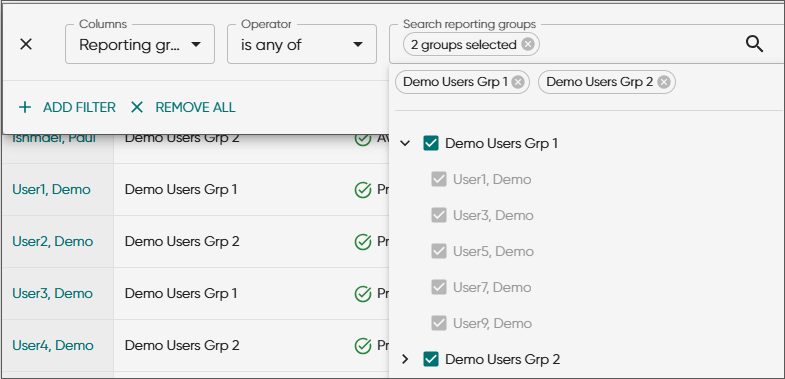
If you have rights to view reporting groups, they are shown in the Reporting group column. For the agent's reporting group to become visible in Dashboard the agent must log in to the Communication Panel at least once.
Filter
The Reporting group filter is available in the Agents view (Agent information, Today's statistics, and Queues tabs), and the Agents table of the Serving status card.
-
Select the Reporting group filter in one of the above views.
-
Select the group(s) from the list or narrow it down by starting to type the group's name.
-
Click the arrow to see the agents in the group.
All agents in the group are automatically selected and you can't deselect them.
Agents can belong to only one reporting group.
-
Select one or several groups.
Column
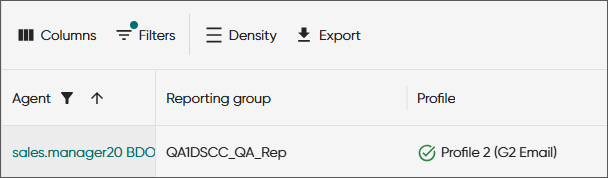
The Reporting group column is unselected by default so select it in Columns. It's available in the Agents view (Agent information, Today's statistics, Queues tabs) and the Agents table of the Serving status card.
Queue group filter
When you have rights to view queue groups, they are shown with the Queue group filter in the Search queue groups and queues field.
The Queue group filter is available in the Queues tab in the Agents view and the Conversations view.
-
Select the Queue group filter in one of the above views.
-
Select the group(s) from the list or narrow it down by starting to type the group's name.
-
Click the arrow to see the queues in the group.
-
Select one or several groups.
Queues can belong to several groups.
-
If you don't want to select all queues in the group, expand the list and select the queues.
-
To select all queues in the group, select the group.