Make a phone call
Using dial pad
- Click the + icon and select Make a call.
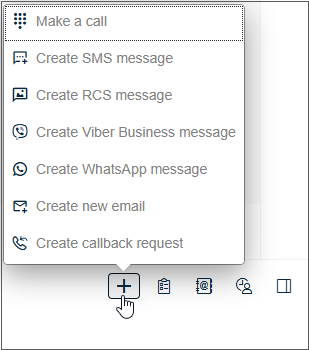
The Make a call popup opens.
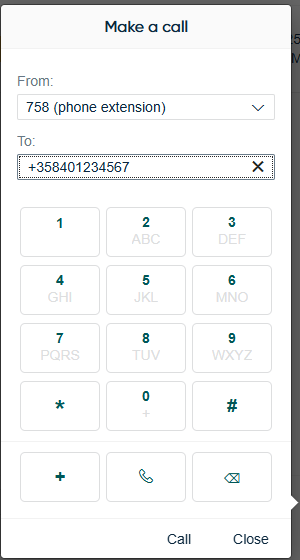
- In the From dropdown, select the number shown to the recipient.
- To enter the phone number, use the dial pad in the UI or type them using your keyboard.
- Click Call.
Via smart link
In the Directory and History
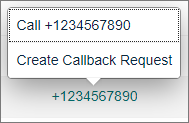
views, there are smart links that appear as blue text.
-
Click the phone number that appears as a smart link.
-
Choose Call.
Via search
-
Enter the search term in the Search queues and agents field.
-
Click the search icon or press enter. You'll see the presence and phone capability information in the results.
-
To start the call, select the agent row and click Call.
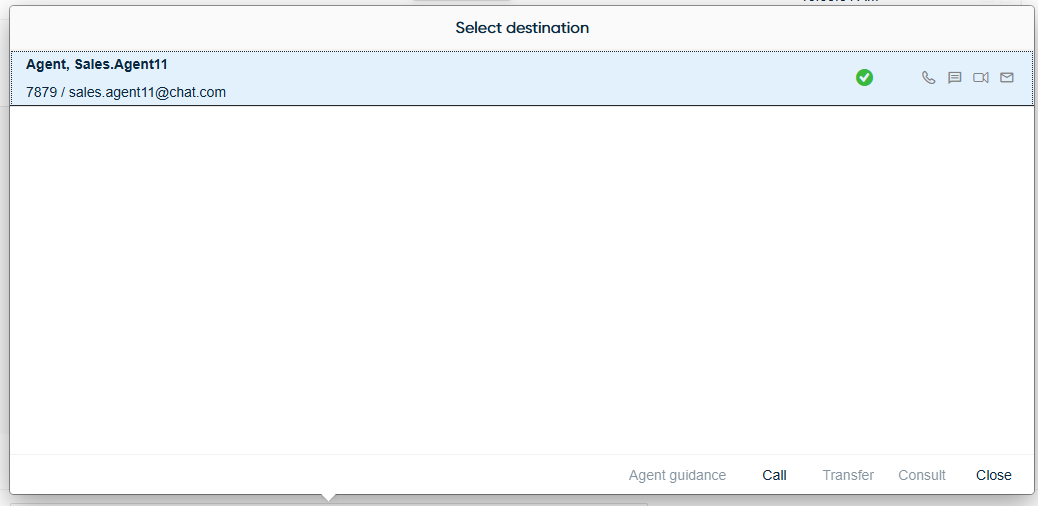
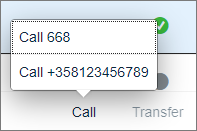
If the person has several phone numbers, choose the number by clicking it.
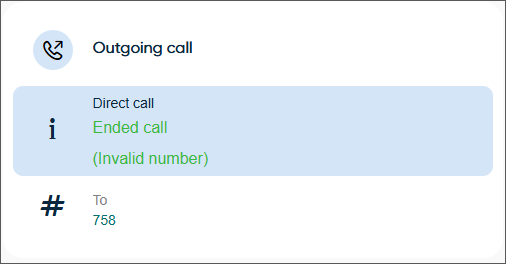
If the call fails, the system tries to show the reason for the failure (for example, Busy, Invalid number, Barred).